Pipelines & jobs
"Pipeline" is the object in Allonia platform that let you design and manage an advanced pipeline for complex data, task, & model processing.
These Pipelines will be instanced into "Jobs" that will execute them, manually or scheduled, based on the pipeline configuration.
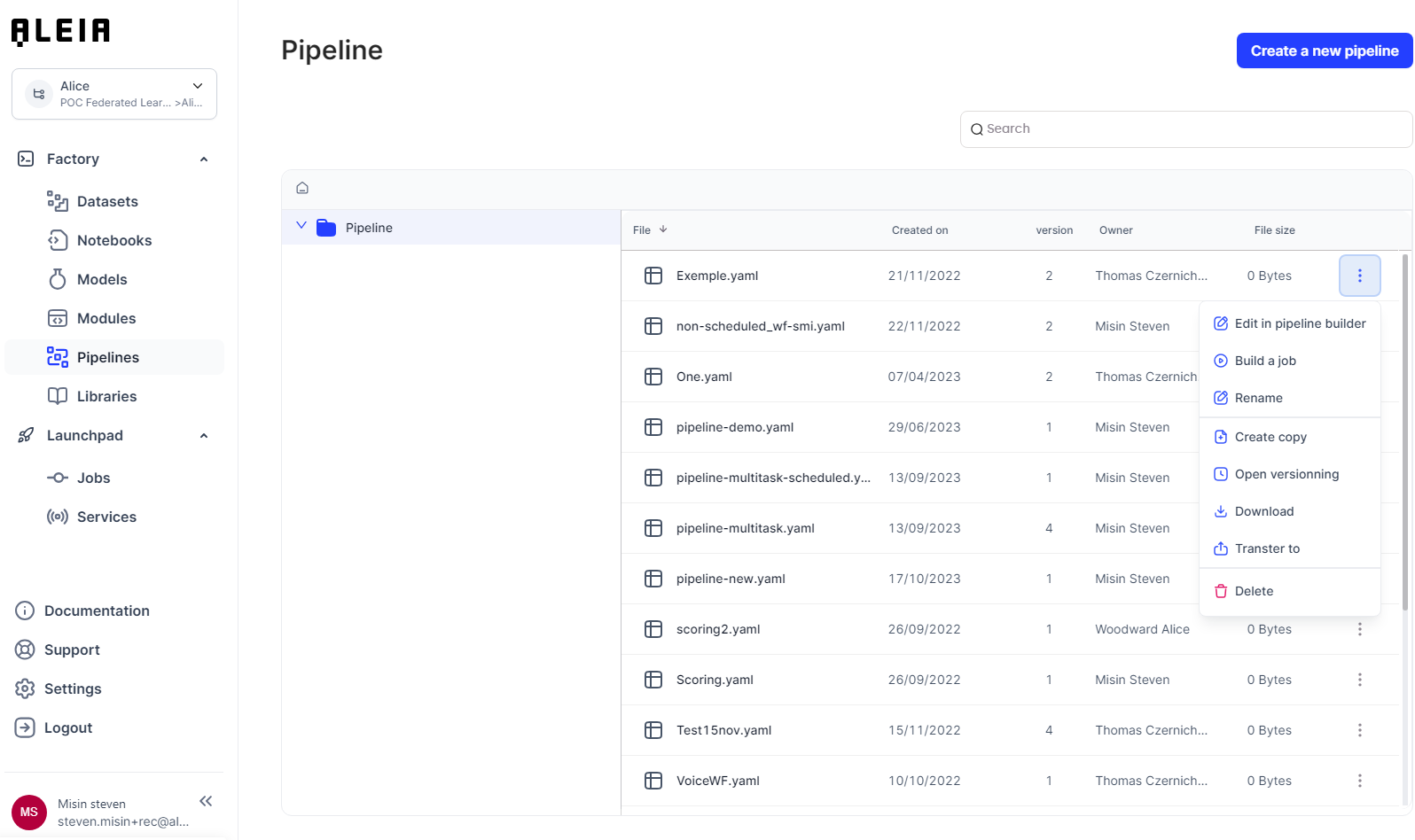
Pipelines
Pipeline creation
You can create a pipeline from the "Pipeline" menu and edit it.
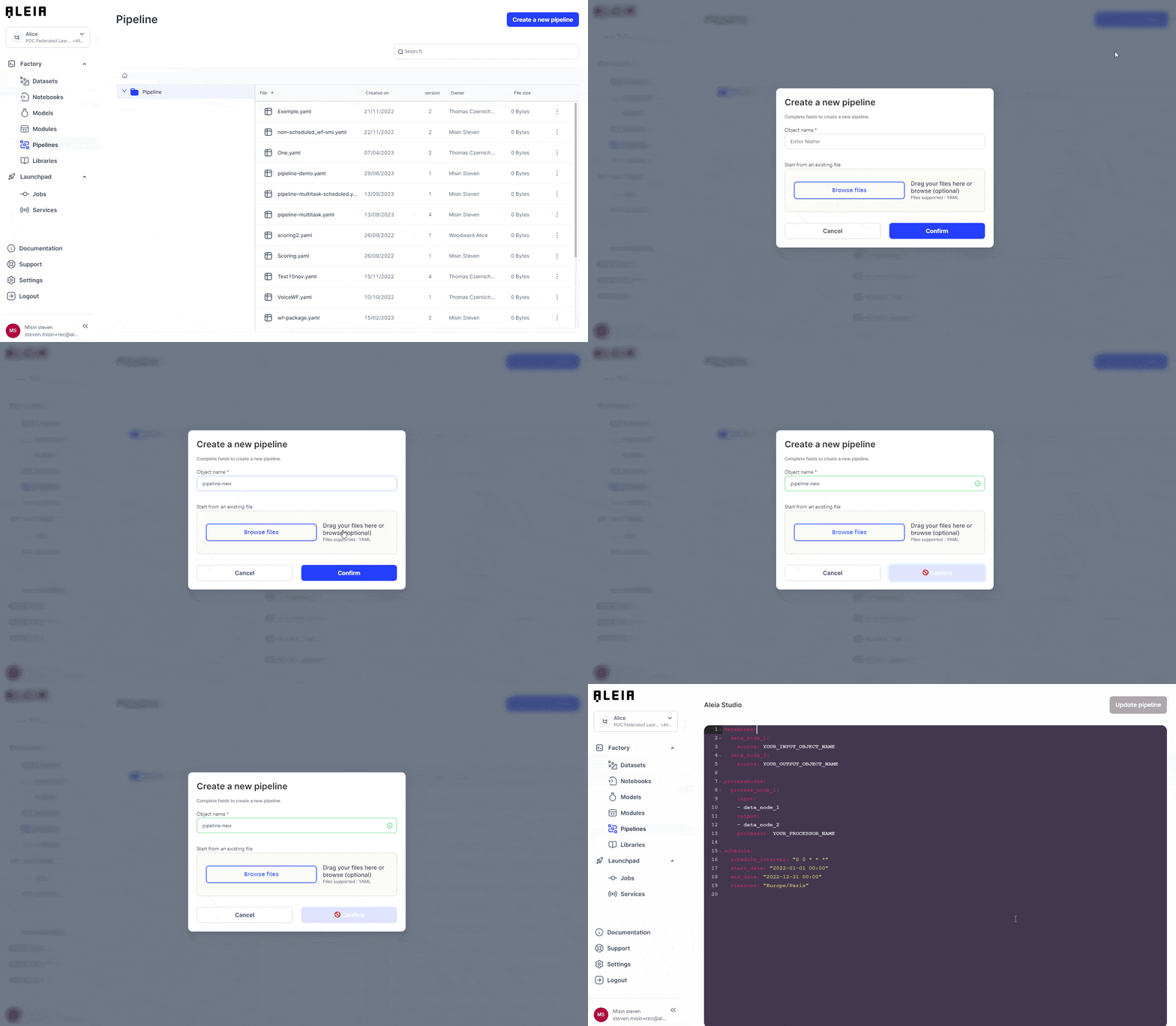
|
You can also create a complete Pipeline with a single Module directly from a Notebook for which you have further information in related section here. |
Pipeline description as Allonia language
Allonia language is a simple data processing Pipeline description format based on YAML syntax. It contains two parts:
-
Data nodes: list of data sets used as part of the pipeline, whether input, intermediate or output.
-
Processing nodes: list of Modules (as processing steps or tasks) as part of the pipeline.
|
You can check for further information about how to create and manage Modules in related section here. |
Processing nodes have input data nodes and output data nodes, thus allowing to declare dependencies. The nodes chained in this way constitute a graph, pipeline’s graph.
Write a Pipeline
Basic pipeline description example:
dataNodes:
  data_node_1: (1)
    source: my_input.csv (3)
  data_node_2: (2)
    source: my_output.csv (3)

processNodes:
  process_node_1: (4)
    input: (5)
    - data_node_1
    output: (6)
    - data_node_2
    processor: my_module (7)
Description:
| 1 | Declaration of the first data node |
| 2 | Declaration of the second data node |
| 3 | Dame of the data sets |
| 4 | Declaration of a single processing node |
| 5 | Configuration of input for the processing node, here we reference the first data node |
| 6 | Configuration of output for the processing node, here we reference the second data node |
| 7 | Name of the Module |
So, the effective graph for this simple pipeline is: my_input.csv → my_module → my_output.csv
Example with multitasking:
dataNodes:
  data_node_1:
    source: my_input.csv
  data_node_2:
    source: intermediate.csv
  data_node_3:
    source: my_output.csv
processNodes:
  process_node_1:
    input:
    - data_node_1
    output:
    - data_node_2
    processor: my_first_task
  process_node_2:
    input:
    - data_node_2
    output:
    - data_node_3
    processor: my_second_task
So, the effective graph for this two-tasks pipeline is: my_input.csv → my_first_task → intermediate.csv → my_second_task → my_output.csv
Example with a task having multiple inputs and outputs:
processNodes:
  task1:
    input:
    - data1
    - data2
    - data3
    output:
    - data4
    - data5
    processor: my_module
This task will read 3 input data sets, and write 2 output data sets.
Parse Pipeline informations and use it in Python code
You can parse informations passed through the datanodes & processnodes to use it inside Modules with the dedicated aleialib.processor python librarie. It will let you develop generic modules that will be able to parse data content from Pipelines description.
How to use assets described in Allonia language in python code:
from aleialib import processor
from aleialib import s3

input_data, output_data = processor.fetch_datanodes_information()

# use name of the first input dataNode, read object from Allonia S3
data = s3.load_file(input_data[0])
Schedule a Pipeline
Scheduling a pipeline can be done directly through the configuration file, with the cron schedule expression. Cron expression editor can be found online to make things easier: https://crontab.guru/
Example for a pipeline that will be executed each day at 10:05am on “Europe/Paris” time zone:
dataNodes:
  data_node_1:
    source: my_input.csv
  data_node_2:
    source: my_output.csv

processNodes:
  process_node_1:
    input:
    - data_node_1
    output:
    - data_node_2
    processor: my_module

schedule:
  schedule_interval: "5 10 * * *"
  start_date: "2022-01-01 00:00"
  end_date: "2022-12-31 00:00"
  timezone: "Europe/Paris"
Manage specific requirements
As you can manage librarie setup by default for a whole track (see Python package management related section here), sometimes you will want to manage specific requirements for a Pipeline to initialize it faster, without using all libraries.
Example for a pipeline that will take only pandas 1.5.3 by default, avoiding all other libraries installed with Allonia Package Management:
dataNodes:
  data_node_1:
    source: my_input.csv
  data_node_2:
    source: my_output.csv

processNodes:
  process_node_1:
    input:
    - data_node_1
    output:
    - data_node_2
    processor: my_module

requirement:
    -
        name: "pandas"
        version: 1.5.3
Jobs
Jobs view
Jobs view will display all job executions, running or not. Jobs will have these status depending on their type:
-
Manual (Pipeline with no scheduling parameters set, one time execution)
-
Ready
-
Running
-
Success
-
Failed
-
-
Scheduled (Pipeline with scheduling parameters set)
-
Pending
-
Running
-
Success
-
Failed
-
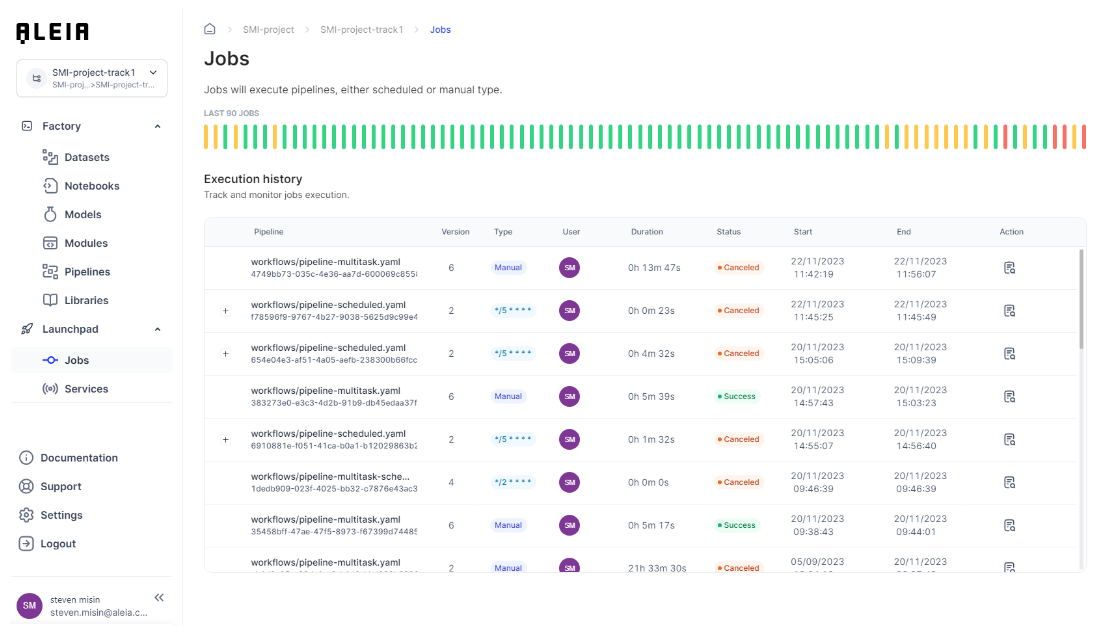
Job creation and run
In order to run a Pipeline into a Job execution: * Ensure pipeline’s input data sets and modules exist * Select a pipeline and use the "Build job" action. After a few seconds, the job is ready to run * If it’s a manual pipeline, you will have to run it. If it’s scheduled, it will wait for next execution iteration
As soon a job is running, you will be able to access to its logs in real-time.

Jobs execution from outside the platform
Jobs can be executed from outside the platform as well, using Allonia’s platforms APIs and a token that can be created and managed through the My Account/Access token space available in your account.
For a given job created on the platform, copying its UUID from the UI will let you execute from code.
Code example to be executed outside Allonia’s platform for an existing job:
from requests_aws4auth import AWS4Auth
#pip3 install requests-aws4auth
import requests

#Environment info
path = "https://api.k.prod.infra.aleia.com"

#token informations
tokenId = "tokenId"
secretKey = "secretKey"

#AWS authentication
service = "s3"
region = ""
awsauth = AWS4Auth(tokenId, secretKey, region, service)

#test parameters
jobId = "jobId"

#Execute the job
pathJobRun = path + "/jobs/"+jobId+"/run"
rJobRun = requests.post(pathJobRun, auth=awsauth)
print(rJobRun.json())